
Monday, March 1, 2010
DNS Resolver Cache
Problem: Our Firewall was having issues and our network guys applied some fix. Now, when I try to access our subversion server I'm receiving a 'cannot resolve host name' error message.
Solution: Fire up the command prompt and execute ipconfig /flushdns. Simple, eh?

Thursday, February 11, 2010
Sunday, January 24, 2010
WAMP Discoveries #1
Problem: Have you ever encountered Internal Server Error at WAMP?
 The last statement really has something to say. The server error log can be found at wamp\logs folder with apache_error.log filename. At the end of the file content you can find the latest server error entry, similar to the following:


For this particular case, there was an invalid command 'RewriteEngine' found at .htaccess file.
Solution:
Locate the httpd.conf file. With WAMP it is located at wamp\bin\apache\Apache2.2.11\conf folder.
Using your favorite text editor, locate the line
- #LoadModule rewrite_module modules/mod_rewrite.so
Remove the # symbol in the beginning of this line and Save the file.
Restart the All Services of the WAMP server.

That's about it.
Thursday, January 7, 2010
Internet Explorer Discoveries #1
Problem: When I'm accessing a website with a login box, the Internet Explorer (IE) browser is asking me:
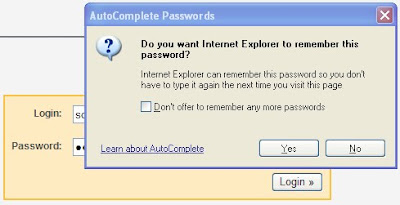
We can turn it off right there and then by ticking the checkbox "Don't offer to remember any more passwords". However, how do you turn it on later?
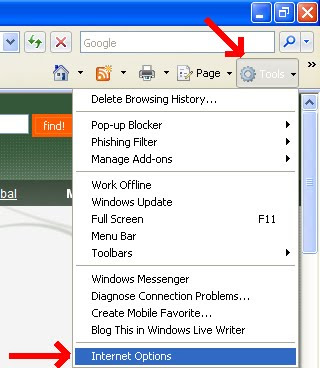
Solution: Navigate Tools > Internet Options.
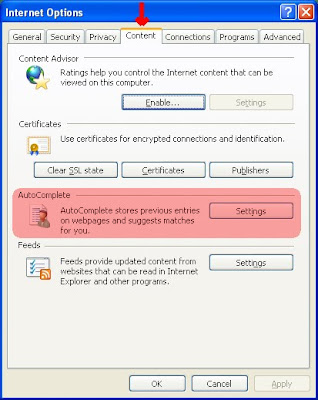
In the Internet Options Dialog, open the Content tab, and click on the Settings button in the AutoComplete section
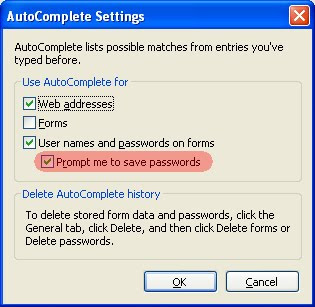
In the AutoComplete Settings Dialog tick the checkbox "Prompt me to save passwords". Hit OK button to save the settings.

We can turn it off right there and then by ticking the checkbox "Don't offer to remember any more passwords". However, how do you turn it on later?
Solution: Navigate Tools > Internet Options.

In the Internet Options Dialog, open the Content tab, and click on the Settings button in the AutoComplete section

In the AutoComplete Settings Dialog tick the checkbox "Prompt me to save passwords". Hit OK button to save the settings.

Wednesday, January 6, 2010
T-SQL Discoveries #1
Given: A database table with the following structure

Problem: How many of each subject were posted on a certain date?
Solution: Issue the following query
SELECT count(queueID) AS TotalCount, dateposted, subject FROM (SELECT queueID, CONVERT(DATETIME,postdate,111) AS dateposted, subject FROM tblQueue) AS tblQ GROUP BY dateposted, subject
NOTE: The above query disregards the posting time, i.e., it focuses on the date alone.
Thursday, December 10, 2009
Outlook Emailer
Problem: I want to send email with important information to my 450 friends at one time. The email should be in HTML format, with appropriate font style, size, and color, and some images.
Solution: Let's capitalize MS Office Outlook and creating an application utilizing Visual Studio Tools for Office. Visual Studio Tools for Office is bundled with Visual Studio 2008. Thus, installing the latter gives the developer access to the former. Now, open a new Windows Forms Application project then add
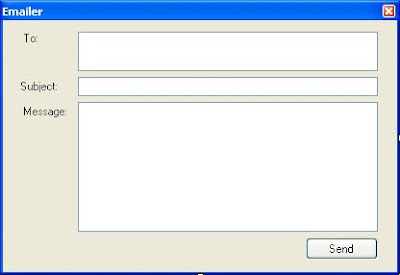
Then, add code to the Send button. First things first:
using Microsoft.VisualStudio.Tools.Applications.Runtime;
using Outlook = Microsoft.Office.Interop.Outlook;
using Office = Microsoft.Office.Core;
Then
private void btnSend_Click(object sender, EventArgs e) {
try {
Outlook.Application _app = new Outlook.Application();
Outlook.MailItem mailItem = _app.CreateItem(Outlook.OlItemType.olMailItem) as Outlook.MailItem;
mailItem.Subject = txtSubject.Text;
mailItem.BodyFormat = Microsoft.Office.Interop.Outlook.OlBodyFormat.olFormatHTML;
mailItem.Importance = Microsoft.Office.Interop.Outlook.OlImportance.olImportanceHigh;
mailItem.HTMLBody = txtMessage.Text;
mailItem.BCC = txtTo.Text;
mailItem.Display(false);
mailItem.Send();
MessageBox.Show("Message has been sent!");
}
catch (Exception ex) {
MessageBox.Show(ex.Message);
}
}
Solution: Let's capitalize MS Office Outlook and creating an application utilizing Visual Studio Tools for Office. Visual Studio Tools for Office is bundled with Visual Studio 2008. Thus, installing the latter gives the developer access to the former. Now, open a new Windows Forms Application project then add
- Microsoft.VisualStudio.Tools.Applications.Runtime.v9.0
- Office
- Microsoft.Office.Interop.Outlook

Then, add code to the Send button. First things first:
using Microsoft.VisualStudio.Tools.Applications.Runtime;
using Outlook = Microsoft.Office.Interop.Outlook;
using Office = Microsoft.Office.Core;
Then
private void btnSend_Click(object sender, EventArgs e) {
try {
Outlook.Application _app = new Outlook.Application();
Outlook.MailItem mailItem = _app.CreateItem(Outlook.OlItemType.olMailItem) as Outlook.MailItem;
mailItem.Subject = txtSubject.Text;
mailItem.BodyFormat = Microsoft.Office.Interop.Outlook.OlBodyFormat.olFormatHTML;
mailItem.Importance = Microsoft.Office.Interop.Outlook.OlImportance.olImportanceHigh;
mailItem.HTMLBody = txtMessage.Text;
mailItem.BCC = txtTo.Text;
mailItem.Display(false);
mailItem.Send();
MessageBox.Show("Message has been sent!");
}
catch (Exception ex) {
MessageBox.Show(ex.Message);
}
}
Thursday, November 5, 2009
MS Outlook PS #1: Error using Comma as Email Address Separator
Problem:
Receiving error message when using comma as email address separator.
Solution:
Microsoft Office Outlook 2003 and Microsoft Office Outlook 2007 uses, by default, semi-colons to separate email addresses.
You can configure Outlook to recognize the comma as a valid e-mail address separator as follows:
Receiving error message when using comma as email address separator.
Solution:
Microsoft Office Outlook 2003 and Microsoft Office Outlook 2007 uses, by default, semi-colons to separate email addresses.
You can configure Outlook to recognize the comma as a valid e-mail address separator as follows:
- On the Tools menu, click Options....
- On the General tab, click E-Mail Options
- Click Advanced E-Mail Options
- Under When sending a message click to select the Allow comma as address separator check box.
Subscribe to:
Posts (Atom)