If you are using XAMPP (in Windows box), the easiest way to add a new website is to create a folder at /xampp/htdocs/ and place all your PHP or HTML files there.
But, I want to make use of the existing codes stored at some other folder in my machine!
Have no worries! Simply follow these steps:
STEP 1: Open httpd-vhosts.conf found at /xampp/apache/conf/extra/.
STEP 2: Append the following lines
# My New Website
Listen *:9000
<VirtualHost *:9000>
ServerName localhost:9000
DocumentRoot "D:/path/to/your/existing/code"
<Directory "D:/path/to/your/existing/code">
AllowOverride All
Options +Indexes
DirectoryIndex index.php index.html
Order allow,deny
Allow from all
</Directory>
ErrorLog logs/error.log
CustomLog logs/access.log common
</VirtualHost>
STEP 3: Save the file.
STEP 4: Restart Apache.
STEP 5: Navigate http://localhost:9000/ and your website should show up! Voila!
NOTES:
(1) 9000 is just some port number, you may use your preferred port number.
(2) the forward slash (/) to indicate path is necessary.

Tuesday, August 17, 2010

Thursday, August 5, 2010
PostgreSQL for Windows Installation Procedure
Postgresql is a free database management system which can be downloaded by Windows users here: http://www.postgresql.org/download/windows
The following are snapshots during my installation:


At this point Postgresql is installed, however, there are a set of tools which are of interest. Thus, i kept the check box ticked before hitting Finish button.

 I chose to install MySQL Migration Wizard, Tuning Wizard for PostgreSQL, and phpPgAdmin.


As a means to monitor usage of the product, the creators are requiring each user to register before the tools can be download, installed and enjoyed.


After providing your information, a confirmation email is sent. Registration is complete when the confirmation URL is visited.

To commence download of the tools, the registered email address and password are being asked.


Finally, were down to the last screen. Hit Finish button to terminate the PostgreSQL installation process.

The following are snapshots during my installation:


At this point Postgresql is installed, however, there are a set of tools which are of interest. Thus, i kept the check box ticked before hitting Finish button.

 I chose to install MySQL Migration Wizard, Tuning Wizard for PostgreSQL, and phpPgAdmin.


As a means to monitor usage of the product, the creators are requiring each user to register before the tools can be download, installed and enjoyed.


After providing your information, a confirmation email is sent. Registration is complete when the confirmation URL is visited.

To commence download of the tools, the registered email address and password are being asked.


Finally, were down to the last screen. Hit Finish button to terminate the PostgreSQL installation process.

Thursday, July 29, 2010
Block Displaying of Images in Firefox and Internet Explorer
Problem: Your internet connection is quite slow and the website you are visiting contains a considerable number of images. You are more interested with the content rather than the images. How can you configure your Firefox or Internet Explorer to NOT display images as you visit the website?
Solution (Firefox):
- hover the mouse on an image and right click on it.
- select "Block Images from" option.
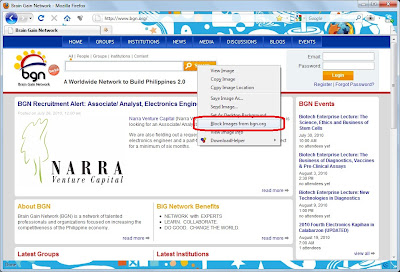
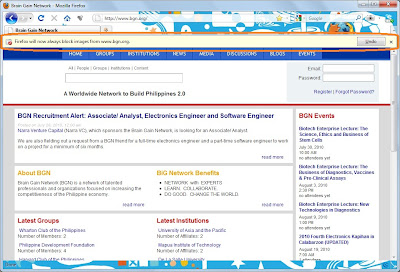
NOTE: Firefox will automatically apply the setting... but it will display a notification and an Undo button.
Solution (Internet Explorer):
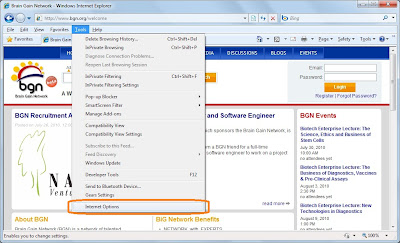
- Navigate Tools > Internet Options
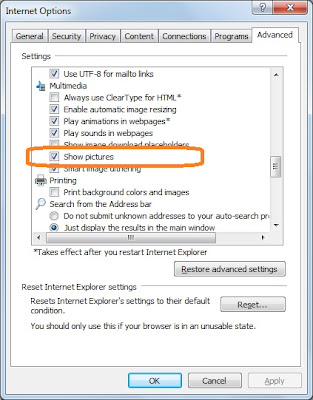
 - In the Advanced tab, locate Show pictures option under Multimedia. Un-check it then click OK button.
Solution (Firefox):
- hover the mouse on an image and right click on it.
- select "Block Images from

NOTE: Firefox will automatically apply the setting... but it will display a notification and an Undo button.

Solution (Internet Explorer):
- Navigate Tools > Internet Options
 - In the Advanced tab, locate Show pictures option under Multimedia. Un-check it then click OK button.
Monday, July 5, 2010
#1045 - Access denied for user 'root@localhost' (using password: YES)
Problem:
When you installed XAMPP and tried to access MySQL via phpMyAdmin you would encounter something like this

#1045 - Access denied for user 'root@localhost' (using password: YES)
Connection for control user as defined in configuration failed.
phpMyAdmin tried to connect to the MySQL server, and the server rejected the connection. You should check the host, username and password in your configuration and make sure that they correspond to the information given by the administrator of the MySQL server.
Solution:
Navigate http://localhost/security/xamppsecurity.php and provide the 'root' password.
When you installed XAMPP and tried to access MySQL via phpMyAdmin you would encounter something like this

#1045 - Access denied for user 'root@localhost' (using password: YES)
Connection for control user as defined in configuration failed.
phpMyAdmin tried to connect to the MySQL server, and the server rejected the connection. You should check the host, username and password in your configuration and make sure that they correspond to the information given by the administrator of the MySQL server.
Solution:
Navigate http://localhost/security/xamppsecurity.php and provide the 'root' password.
Sunday, April 11, 2010
Linux Discoveries #1: Obtaining Information of Installed Packages
Problem: What is the version of the installed PHP or PostgreSQL?
Solution: Remotely log on into the server and execute yum info PHP or yum info postgresql.
Thursday, March 11, 2010
MS Excel PS #2: Insert a Carriage Return/Line Feed in a Cell
Problem: In an Excel Sheet cell you are typing a two paragraph text but when you hit enter key to supposedly continue encoding the next paragraph the cursor instead went to the next cell.
Solution: Use Alt+Enter. Simple, eh?
Monday, March 1, 2010
DNS Resolver Cache
Problem: Our Firewall was having issues and our network guys applied some fix. Now, when I try to access our subversion server I'm receiving a 'cannot resolve host name' error message.
Solution: Fire up the command prompt and execute ipconfig /flushdns. Simple, eh?
Subscribe to:
Posts (Atom)